![Logo in white.png]](https://support.lucemhealth.com/hs-fs/hubfs/Logo%20in%20white.png?height=33&name=Logo%20in%20white.png)
Follow these steps to accept the Lucem Health email invitation to set up your account for access to Disease Insights and/or Reveal Solutions
1. New provisioned users will receive an email invitation with the following information:
From: support@lucemhealth.com
Subject: You've been invited to join the production project for [customer name] Lucem Health
Note: Invitation expires after 1 week. If your invite expires, please email support@lucemhealth.com to request a new invitation.
2. Click 'Accept Invitation' button
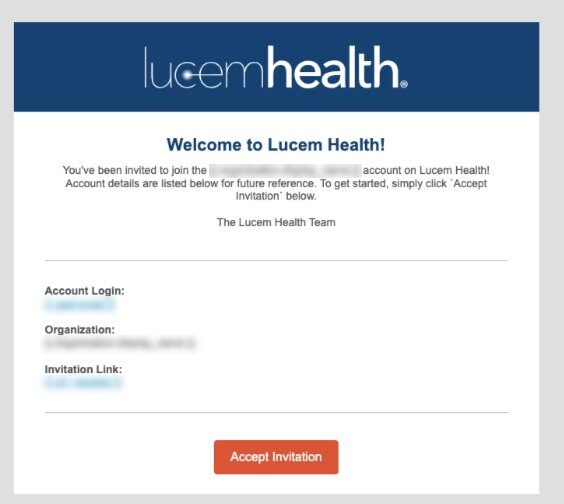
Note: Invitations expire. If this happens, please email support@lucemhealth.com and request a new invitation be sent to you.
Important note: After successfully logging in for the first time, the link in this invitation should not be used to access the application. Please point your browser to your company's unique URL. Example: acme.lucemhealth.ai
3. Click 'Continue'
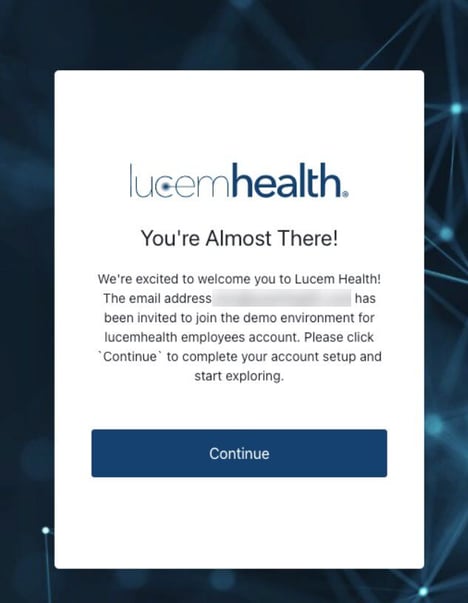
4. Click 'Get Started'

5. Enter your Username and click 'Next' (Username = your work email address)
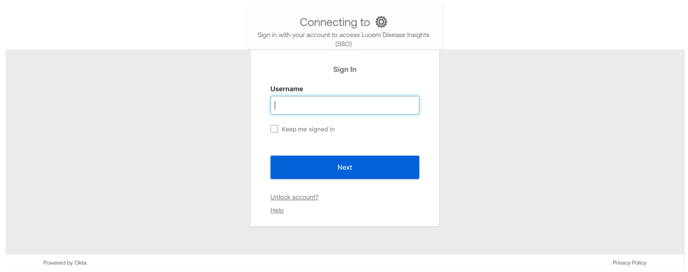
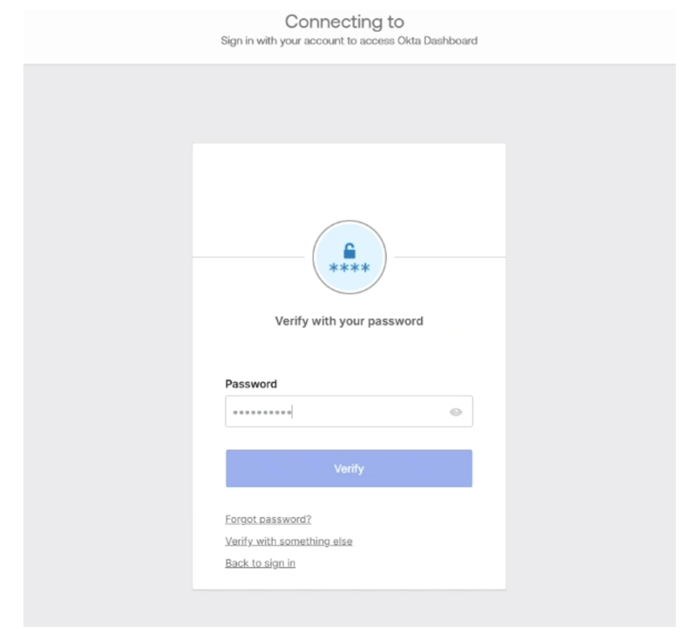
6. Enter your Password and click 'Verify' (Password = your work email password)
Note: If SSO has not been configured for your organization, you will be prompted to create a unique password.
7. Upon accessing the site for the first time, you may see this screen. This means your account has been set up successfully, but your application role has not been assigned. Roles are assigned on the Go Live date for your organization.
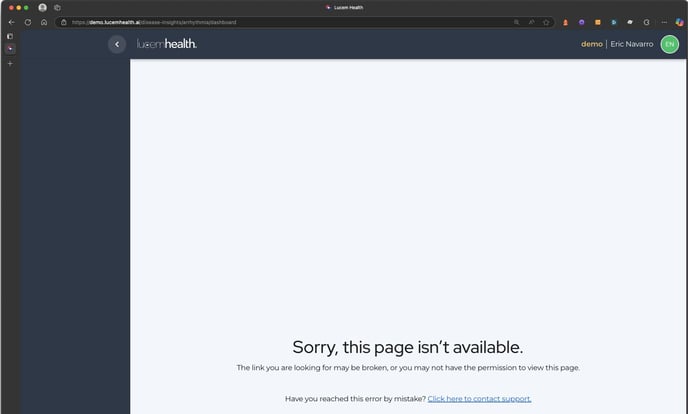
Important note: From this point forward when you want to log in, point your browser to your company's unique URL. Example: acme.lucemhealth.ai
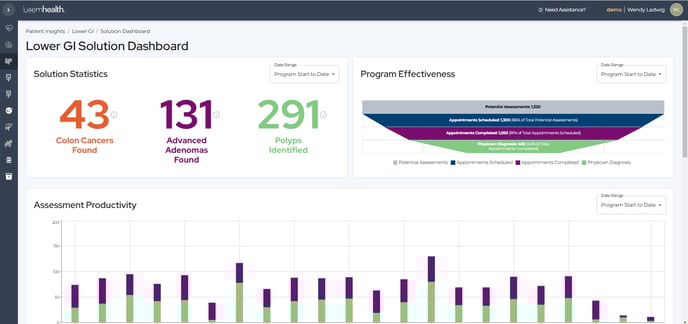
8. The Lucem Health Platform window is displayed - either Reveal or Disease Insights. The screen varies based on the modules to which you have been granted access. The below example is the Solution Dashboard of the Reveal for Lower GI solution.