![Logo in white.png]](https://support.lucemhealth.com/hs-fs/hubfs/Logo%20in%20white.png?height=33&name=Logo%20in%20white.png)
Purpose and Objectives:
This training document will provide an overview and step-by-step directions for the Lucem Health Reveal solution’s Patient Worklist.
Audience:
People who will be using the Patient Worklist portion of the Reveal solution such as patient outreach, care coordinators, and scheduling.
Overview:
The Lucem Health Reveal solution helps identify a list of patients whose patient charts meet specific criteria and are then run through Lucem Health’s Artificial Intelligence (AI) algorithm. The identified patients are then presented in the Reveal solution for a team member(s) to attempt contact and capture the outcome. Through integration with your EHR, the Reveal solution is continuously monitoring this cohort of patients to track the procedure appointment and clinical outcomes. These insights are available to defined users in the Reveal Dashboard. See the Reveal Dashboard training guide for more information.
Username & Password:
Your credentials to login to the Lucem Health Reveal Solution utilize your company’s access management system. You should log in using your standard username and password. If you are unable to log in successfully, please contact your organization’s support desk.
Questions:
For questions that are not answered in this training document, please contact 919-407-8633.
Quick Start Instructions:
- Go to Lucem Health Reveal solution and log in using your company’s login credentials.
- Click the icon for the solution > Worklist.
- Select an available patient and attempt outreach.
- Disposition the outcome.
Detailed Instructions:
| 1. Go to your company’s instance of the Lucem Health Reveal solution and log in using your company’s login credentials.
Typical naming convention: https://<<customer-name>>.lucemhealth.ai |
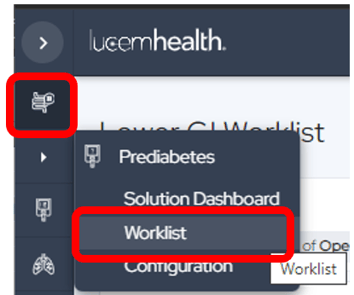
| 2. In the Reveal solution left navigation bar, click the solution icon and click the “Worklist” link.
|
|
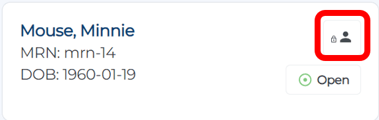
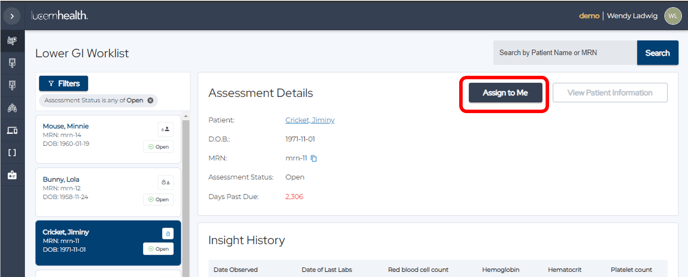
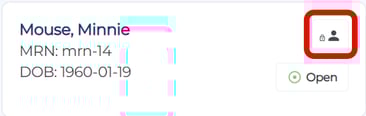
3. Select a patient card. If another person is currently working with the record, it will be displayed with a lock with a person icon.
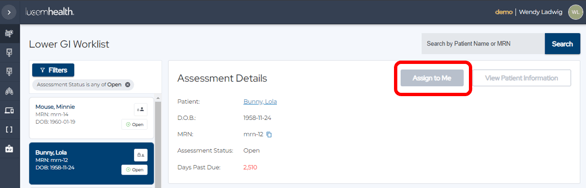
Also, in the “Assessment Details” pane, the Assign to Me button will be grayed out making it unavailable for you to work with it. Proceed to the next patient card until you find one that is available for you to assign to yourself.
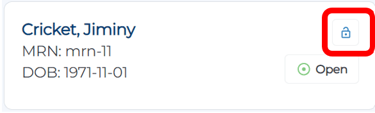
A patient card that is available to be worked will appear with an open lock icon.
In the “Assessment Details”, pane click the Assign to Me button so no one else attempts outreach to the same patient.
The patient card will then display a lock with person icon.
|
|
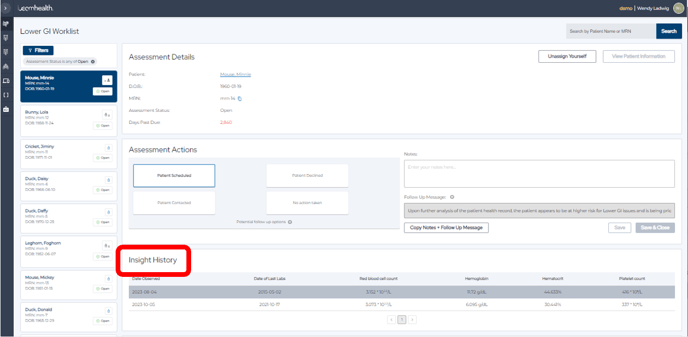
4. If you would like to see some detailed insights for the patient before or during the outreach, scroll down to the “Insight History” section and click on one of the rows in the table.
|
|
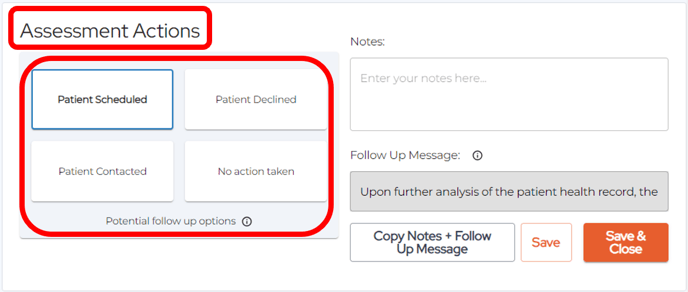
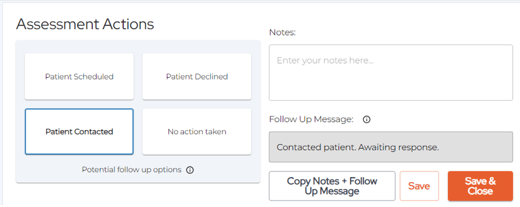
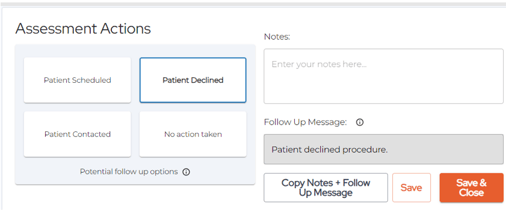
5. Make outreach to the patient and click the button in the “Assessment Actions” section indicating the outcome of the patient outreach. The number of buttons displayed on screen (between 2 and up to 6) and their actions are determined by your organization during the implementation of the solution.
|
|
6. Optionally type notes into the Notes field. Each Assessment Action has pre-defined text that has been configured by your organization.
|
|
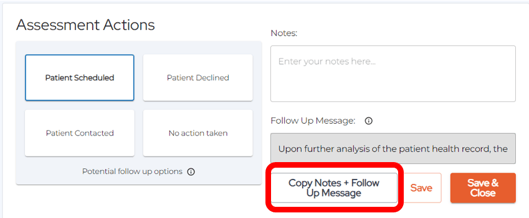
7. If you would like to add those notes or the pre-defined follow up text into your scheduling system or EHR, click the Copy Notes + Follow Up Message button, go to your other system, and paste the notes into the appropriate location.
|
|
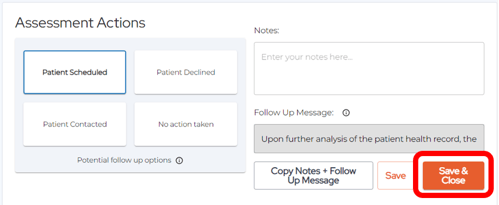
8. Click the Save & Close button to move on to the next available patient.
|
|
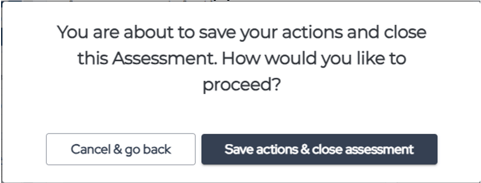
9. A confirmation screen will appear. Click the button that matches your situation.
|
|
10. Continue to work the list until all patients have been contacted and/or until you have attempted outreach the agreed upon number of times per business rules. |
|
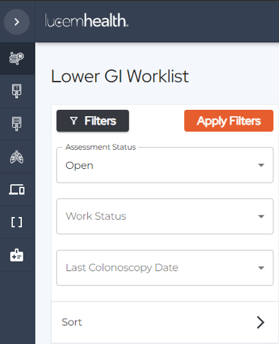
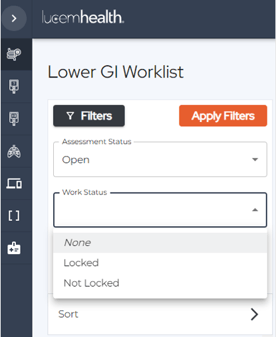
Tip: Use Filters and/or Sort to manage the list of patients that appear in the worklist. There are three filters that can be used in addition to the ability to sort. An example of the options in the Work Status filter is provided here.
|